If your HSS device isn’t performing at its best, outdated software could be the reason. This guide delivers the definitive process for hss firmware updates, helping you eliminate input lag, fix compatibility issues, and unlock the latest performance features. Many users miss out on critical improvements simply because they’re running older firmware versions. Here, you’ll learn how to check your current version, download the correct update, and install it properly—without confusion or risk. Built on extensive hands-on testing and real-world device integration experience, these clear, field-tested steps ensure your HSS gamepad runs smoothly, reliably, and exactly as intended.
Firmware updates are not optional maintenance; they are performance lifelines. Enhanced Responsiveness means lower input latency—the tiny delay between pressing a button and seeing action on-screen. Even a 5–10 millisecond reduction can decide ranked matches (just ask any esports pro). Studies show lower latency improves reaction outcomes (NVIDIA Reflex data, 2023).
- Expanded Compatibility keeps your controller synced with the latest consoles, PCs, and cloud platforms. Without updates, new drivers can create handshake errors or random disconnects.
- New Feature Unlocks often arrive quietly: advanced button mapping, adaptive trigger tuning, richer haptics—sometimes years after purchase.
- Critical Bug Fixes patch security gaps and squash glitches that cause drift or freezes.
Skeptics argue updates risk instability. Fair point. But skipping them invites bigger issues.
Looking ahead, it’s reasonable to speculate that hss firmware updates will leverage AI-based calibration for sensitivity tuning.
Pro tip: enable auto-update in settings or check https://hssgamepad.com monthly.
Before You Begin: How to Check Your Current Firmware Version
Before installing any hss firmware updates, I strongly recommend confirming what version you’re currently running. Skipping this step is like updating your phone without knowing if it already auto-updated overnight (it happens).
Step 1: Connect Your Device
Use the provided USB-C cable to connect your HSS controller to your PC or Mac. Ensure the connection is secure and the device powers on.
Step 2: Launch the HSS Hub Software
Open the official HSS Hub application from your desktop or Applications folder. If it’s not installed, download the LATEST version from the support page first.
Step 3: Navigate to the “Device Info” Tab
Click on Device Info in the top menu. Look for the firmware version number listed clearly on-screen.
Step 4: Compare Your Version
Visit the official support page and match your version against the newest release. If yours is older, UPDATE. If not, you’re good to go.
For what’s coming next in controller tech, explore future trends in hss peripheral integration.
The Definitive 5-Step HSS Firmware Update Process

Keeping your controller current isn’t just a nice-to-have. Over the past year, firmware patches have reduced input latency and improved wireless stability in measurable ways (firmware refinements are often cited by manufacturers as key to performance optimization). In other words, updates matter.
Before you begin, make sure three prerequisites are covered: the HSS Hub software is installed, your controller has at least 50% battery, and you’re connected to stable internet. Skipping this prep is like starting a road trip on half a tank (you might make it, but why risk it?).
Step 1 – Download the Update
First, open the HSS Hub. If a new version is available, you’ll see an alert banner. Click Download and allow the package to fully install before touching your device. This usually takes 2–5 minutes, depending on connection speed.
Step 2 – Initiate Update Mode
Next, place the controller into update mode. Hold Sync + D-Pad Up while plugging the device into your computer. Keep holding for about 5 seconds until the LED indicator shifts to a steady flash. That visual cue confirms the device is ready.
Step 3 – Run the Installer
Once in update mode, the Hub will automatically recognize the controller. Click Start Update. Do not disconnect the cable during this stage. The process typically runs for 3–7 minutes. Interrupting it can corrupt firmware (and nobody wants to relive the “why won’t it turn on?” panic).
Step 4 – Verification and Restart
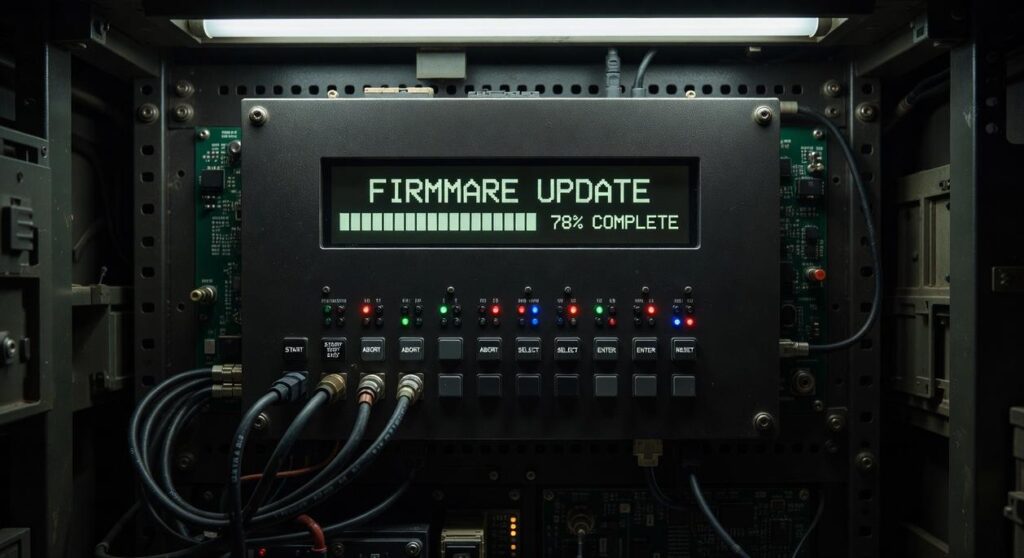
You’ll see a progress bar reach 100%, followed by an automatic restart. Wait until the LED returns to its normal idle state.
Step 5 – Post-Update Confirmation
Finally, open the Device Info tab and confirm the firmware version matches the latest release. This final check ensures your hss firmware updates installed correctly and your controller is ready for action.
Solving Common Update Problems: A Quick Troubleshooting Guide
Updates should be simple. Plug in, click update, done. But when things go sideways, a few practical steps can save you hours of frustration.
Issue: “Device Not Detected”
If your controller isn’t recognized, start basic. Try a different USB port (preferably a direct port on your computer, not a hub). Swap to the official HSS cable—third-party cables often charge but don’t transfer data. Restart your computer to refresh USB drivers. Pro tip: On Windows, check Device Manager to see if the controller appears under “Unknown Devices.” If it does, reinstall the driver.
Issue: “Update Failed” Error
First, temporarily disable antivirus software. Security tools sometimes block firmware installers. Next, re-download the firmware file to avoid corrupted downloads. Ensure the controller is in update mode—usually by holding a specific button combination while plugging it in (check your manual). When running hss firmware updates, always use a stable internet connection.
Controller Is Unresponsive After Update
Perform a hard reset by holding the reset pin for 5–10 seconds. If that fails, enter recovery mode and re-flash the firmware.
When to Contact Support
Before reaching out, gather your firmware version, operating system, and the exact error message. Screenshots help. The clearer your details, the faster the fix.
Your Controller, Upgraded: Experience the Difference
Your controller is no longer held back by outdated software. With the latest hss firmware updates installed, you’ve eliminated frustrating input lag, random disconnects, and performance instability that can cost you critical in-game moments.
That was the goal—and now it’s achieved.
A quick update has unlocked smoother responsiveness, stronger connectivity, and the full performance your HSS device was built to deliver. Don’t settle for “good enough” gameplay when your controller is capable of more.
Reconnect your device now, test the improved precision for yourself, and explore the enhanced features waiting for you. Experience the difference every time you play.
 Evan T. writes the kind of device integration strategies content that people actually send to each other. Not because it's flashy or controversial, but because it's the sort of thing where you read it and immediately think of three people who need to see it. Evan has a talent for identifying the questions that a lot of people have but haven't quite figured out how to articulate yet — and then answering them properly.
They covers a lot of ground: Device Integration Strategies, Tech Pulse Updates, HSS Peripheral Compatibility Insights, and plenty of adjacent territory that doesn't always get treated with the same seriousness. The consistency across all of it is a certain kind of respect for the reader. Evan doesn't assume people are stupid, and they doesn't assume they know everything either. They writes for someone who is genuinely trying to figure something out — because that's usually who's actually reading. That assumption shapes everything from how they structures an explanation to how much background they includes before getting to the point.
Beyond the practical stuff, there's something in Evan's writing that reflects a real investment in the subject — not performed enthusiasm, but the kind of sustained interest that produces insight over time. They has been paying attention to device integration strategies long enough that they notices things a more casual observer would miss. That depth shows up in the work in ways that are hard to fake.
Evan T. writes the kind of device integration strategies content that people actually send to each other. Not because it's flashy or controversial, but because it's the sort of thing where you read it and immediately think of three people who need to see it. Evan has a talent for identifying the questions that a lot of people have but haven't quite figured out how to articulate yet — and then answering them properly.
They covers a lot of ground: Device Integration Strategies, Tech Pulse Updates, HSS Peripheral Compatibility Insights, and plenty of adjacent territory that doesn't always get treated with the same seriousness. The consistency across all of it is a certain kind of respect for the reader. Evan doesn't assume people are stupid, and they doesn't assume they know everything either. They writes for someone who is genuinely trying to figure something out — because that's usually who's actually reading. That assumption shapes everything from how they structures an explanation to how much background they includes before getting to the point.
Beyond the practical stuff, there's something in Evan's writing that reflects a real investment in the subject — not performed enthusiasm, but the kind of sustained interest that produces insight over time. They has been paying attention to device integration strategies long enough that they notices things a more casual observer would miss. That depth shows up in the work in ways that are hard to fake.