Getting your controller to work seamlessly across devices shouldn’t feel like solving a technical puzzle. If you’re here, you’re likely looking for a clear, reliable gaming controller setup guide that walks you through compatibility, configuration, and performance optimization without the confusion.
This article is designed to do exactly that. We break down the essentials of controller setup—from initial pairing and firmware checks to advanced calibration and device integration strategies. Whether you’re connecting to a PC, console, or mobile device, you’ll find step-by-step insights that eliminate guesswork and prevent common setup mistakes.
Our recommendations are based on hands-on testing, real-world device compatibility checks, and up-to-date knowledge of controller firmware behavior and system requirements. We stay closely aligned with the latest tech pulse updates and evolving integration standards to ensure accuracy.
By the end of this gaming controller setup guide, you’ll know how to optimize responsiveness, ensure stable connections, and unlock the full performance potential of your controller.
Unlock Your Ultimate Gaming Experience: A Step-by-Step Controller Setup Guide
This gaming controller setup guide walks you through every step.
Unboxing a controller should feel exciting, yet hiccups happen.
First, decide on your connection type: wired USB, Bluetooth, or a 2.4GHz dongle.
Wired setups are plug-and-play, but still check for driver prompts on PC.
For Bluetooth, enable pairing mode on both devices, then confirm the controller appears in your system’s settings menu.
If you prefer a dongle, insert it first, then power on the controller to sync automatically.
Finally, calibrate buttons and sticks in-game to eliminate drift or sensitivity issues.
Pre-Setup Checklist: What You Need Before You Start
Before you press a single button, slow down and run through this checklist. It’ll save you time (and frustration).
Confirm Compatibility: First, verify your controller works with your system—PC, Xbox, PlayStation, or Switch. According to Sony and Microsoft support documentation, incompatible Bluetooth profiles are a leading cause of failed pairing attempts (PlayStation Support; Xbox Support). Check the manufacturer’s site or packaging specs.
Power Up: Next, charge it fully or insert fresh batteries. Low power is one of the most common connection issues reported in user forums and support tickets.
Gather Your Gear: Even wireless controllers often require a USB-C or Micro-USB cable for first-time syncing or firmware updates.
Check for Dongles: If it uses 2.4GHz wireless, the USB dongle isn’t optional—it’s essential.
Software Awareness: Finally, PC users may need drivers or platforms like Steam enabled. Valve confirms Steam Input improves controller detection rates. A solid gaming controller setup guide always starts here.
Connecting Your Controller: Wired vs. Wireless Methods
Choosing between wired and wireless controller connections sounds simple—until lag, battery life, or compatibility issues start ruining your match point. So let’s break it down clearly, and more importantly, highlight what most guides don’t tell you.
Wired Connections: Stability First
A wired connection means physically linking your controller to your console or PC via USB. The biggest advantage? Lower input latency—the delay between pressing a button and seeing the action on-screen. Competitive players often prefer wired setups because even milliseconds matter (just ask any fighting game tournament player).
However, some argue modern wireless tech has eliminated noticeable lag. They’re not entirely wrong. High-end Bluetooth and proprietary 2.4GHz adapters have dramatically improved response times (RTINGS input lag tests consistently show minimal differences in premium models).
Still, here’s what’s often overlooked: wired connections also provide consistent power delivery and firmware stability. No battery dips mid-session. No signal interference from nearby routers. Pro tip: If you’re troubleshooting random disconnects, test wired first—it isolates variables fast.
Wireless Connections: Freedom and Flexibility
On the other hand, wireless controllers offer mobility and cleaner setups. No cable drag. No desk clutter. Perfect for couch gaming or multi-device switching.
Yet competitors rarely mention integration depth. Not all wireless modes are equal. Bluetooth may support broader device pairing, but dedicated USB receivers often deliver lower latency and stronger signal consistency. Additionally, firmware updates can subtly improve performance—something many users ignore after unboxing.
If you’re following a gaming controller setup guide, check whether your device supports dual-mode pairing (USB + Bluetooth). That flexibility future-proofs your setup, especially if you upgrade consoles or switch between PC and mobile.
Ultimately, wired wins for competitive precision. Wireless wins for comfort and versatility. The real advantage? Understanding when to use each—not blindly committing to one camp (because yes, you can have both).
Platform-Specific Setup Guides
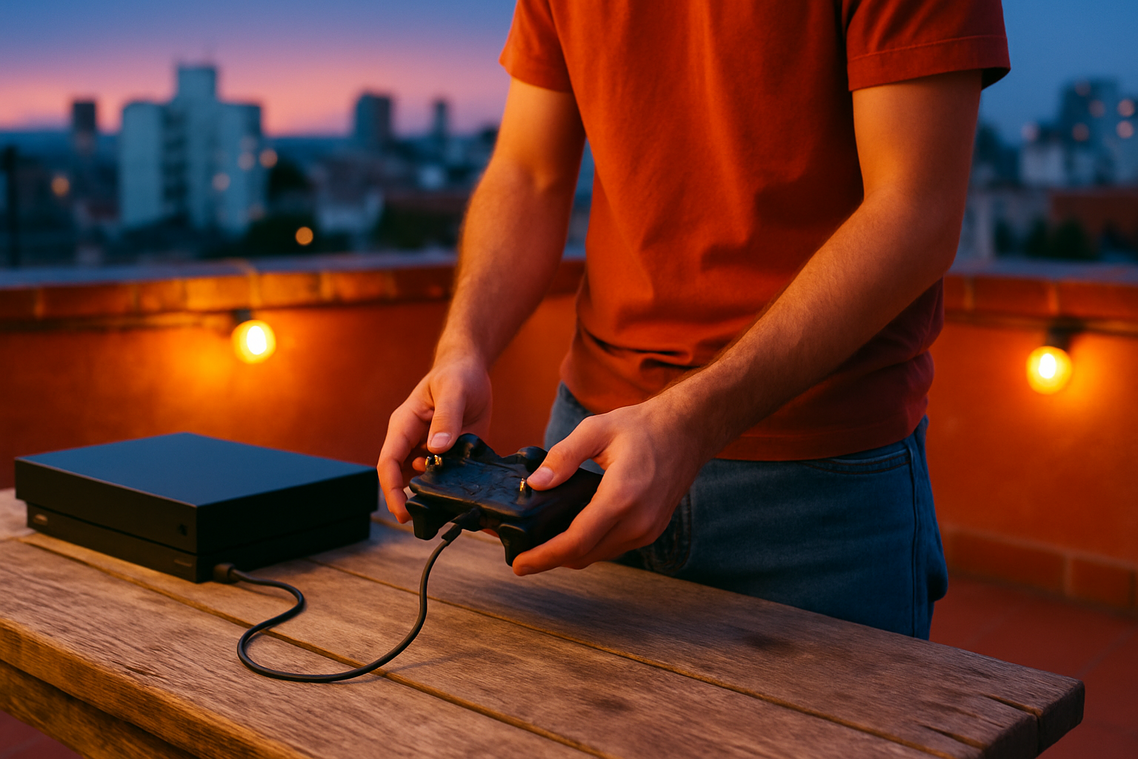
Getting your controller dialed in shouldn’t feel like defusing a bomb in an action movie (unless you’re actually playing one). Platform-specific setup simply means adjusting your controller based on the system you’re using—PC, PlayStation, Xbox, or Switch—because each handles inputs, drivers, and button mapping a little differently.
For example, on PC, you’ll often tweak dead zones—the small area a joystick can move without registering input. On consoles, meanwhile, you’re more likely adjusting sensitivity curves, which determine how fast your character turns based on stick movement. Same controller, totally different behavior.
Why Platform Differences Matter
Some gamers argue default settings are “good enough.” And sure, defaults work (so does instant coffee). But optimized settings reduce input lag—meaning the delay between pressing a button and seeing action on-screen (NVIDIA, 2023). Even milliseconds matter in competitive play.
If you’re unsure where to begin, follow a structured gaming controller setup guide tailored to your platform. Then, take it further by learning how to calibrate your controller for maximum accuracy.
Pro tip: After major system updates, recheck calibration. Firmware tweaks can subtly reset sensitivity (yes, it’s annoying).
Ultimately, platform-specific setup isn’t overkill—it’s the difference between “Why did I miss that shot?” and MVP status. And honestly, we all prefer the latter.
Controller issues happen to everyone, but the fix often depends on the scenario: wired vs. wireless, software vs. hardware.
Controller Not Detected
Wired controllers (USB) are usually plug‑and‑play. If yours isn’t recognized, swap the cable or port—front USB ports often supply steadier power than rear hubs. Wireless controllers, on the other hand, rely on pairing and battery life. If it’s not detected, fully charge it and restart pairing. A system reboot can resolve driver conflicts (think of it as turning the game off and on again—classic IT wisdom).
Input Lag or Disconnections
Bluetooth offers convenience but can suffer interference from routers or headsets. A 2.4GHz dongle typically provides a stronger, dedicated signal. If using a dongle, try a USB extension for clearer line of sight.
Stick Drift or “Ghost” Inputs
Recalibrate in system settings or raise the in‑game deadzone. Follow a reliable gaming controller setup guide before assuming hardware failure.
Your Controller is Ready: Game On
At last, everything clicks. The soft glow of the power light, the subtle vibration in your hands, the quiet chime confirming connection—it all signals you’re ready. Whether you followed a gaming controller setup guide for wired, Bluetooth, or dongle pairing, the result feels the same: smooth, instant response.
No more button mashing in confusion (we’ve all been there). Instead, you get:
- Crisp input with zero lag
- Stable connectivity across sessions
- Comfortable, ergonomic control
Now, as the game loads and the soundtrack swells, lean in. It’s time to play the way it’s meant to feel.
Level Up Your Setup with Confidence
You came here looking for clarity on optimizing your controller performance, compatibility, and overall gameplay experience — and now you have a clear path forward. From fine-tuning sensitivity settings to ensuring seamless device integration, you understand what it takes to eliminate lag, input errors, and frustrating setup mistakes.
The real pain point isn’t just a controller that doesn’t work — it’s lost matches, slow reactions, and wasted time troubleshooting instead of playing. A poorly configured setup holds you back from performing at your best.
That’s why following a proven gaming controller setup guide matters. When you apply the right configuration strategies and compatibility checks, you unlock smoother response times, better precision, and a competitive edge.
Now it’s time to take action. Don’t settle for inconsistent gameplay. Use our expert-backed insights, trusted by thousands of competitive and casual players, to dial in your perfect setup today. Optimize your controller, eliminate performance issues, and start playing the way you were meant to — with total control.
 Evan T. writes the kind of device integration strategies content that people actually send to each other. Not because it's flashy or controversial, but because it's the sort of thing where you read it and immediately think of three people who need to see it. Evan has a talent for identifying the questions that a lot of people have but haven't quite figured out how to articulate yet — and then answering them properly.
They covers a lot of ground: Device Integration Strategies, Tech Pulse Updates, HSS Peripheral Compatibility Insights, and plenty of adjacent territory that doesn't always get treated with the same seriousness. The consistency across all of it is a certain kind of respect for the reader. Evan doesn't assume people are stupid, and they doesn't assume they know everything either. They writes for someone who is genuinely trying to figure something out — because that's usually who's actually reading. That assumption shapes everything from how they structures an explanation to how much background they includes before getting to the point.
Beyond the practical stuff, there's something in Evan's writing that reflects a real investment in the subject — not performed enthusiasm, but the kind of sustained interest that produces insight over time. They has been paying attention to device integration strategies long enough that they notices things a more casual observer would miss. That depth shows up in the work in ways that are hard to fake.
Evan T. writes the kind of device integration strategies content that people actually send to each other. Not because it's flashy or controversial, but because it's the sort of thing where you read it and immediately think of three people who need to see it. Evan has a talent for identifying the questions that a lot of people have but haven't quite figured out how to articulate yet — and then answering them properly.
They covers a lot of ground: Device Integration Strategies, Tech Pulse Updates, HSS Peripheral Compatibility Insights, and plenty of adjacent territory that doesn't always get treated with the same seriousness. The consistency across all of it is a certain kind of respect for the reader. Evan doesn't assume people are stupid, and they doesn't assume they know everything either. They writes for someone who is genuinely trying to figure something out — because that's usually who's actually reading. That assumption shapes everything from how they structures an explanation to how much background they includes before getting to the point.
Beyond the practical stuff, there's something in Evan's writing that reflects a real investment in the subject — not performed enthusiasm, but the kind of sustained interest that produces insight over time. They has been paying attention to device integration strategies long enough that they notices things a more casual observer would miss. That depth shows up in the work in ways that are hard to fake.