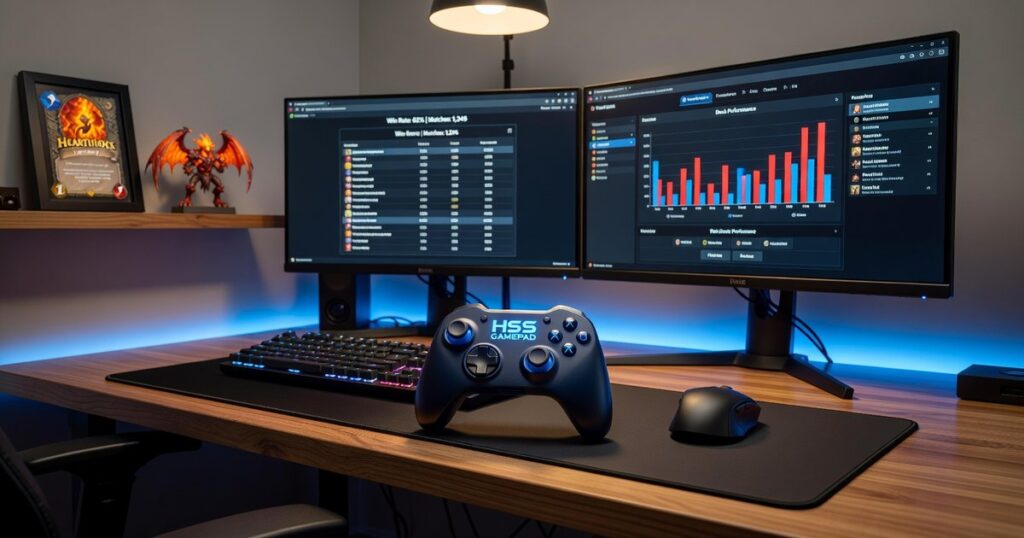
I’ve reviewed hundreds of Hearthstone replays and my wrist was killing me.
You’re probably clicking through replay after replay with your mouse, scrubbing back and forth to catch that one misplay. It gets old fast.
Here’s what changed everything for me: using a gamepad to control my replay analysis. Sounds weird but it works.
I spent months testing different controller setups to find what actually makes replay review faster and easier on your hands. Not just comfortable. Actually better for catching the details that matter.
This guide walks you through the hssgamepad set up from hearthstats. I’ll show you exactly how to configure a standard gamepad so you can navigate replays without reaching for your mouse every five seconds.
We’ve tested this setup across different controllers and replay scenarios. It works whether you’re reviewing one game or grinding through twenty in a session.
You’ll learn how to map the right controls, which buttons to use for scrubbing, and how to set up shortcuts that make sense when you’re actually analyzing plays.
No complicated software. Just a straightforward setup that saves your wrists and speeds up your review process.
Why Use a Gamepad for Analysis? The Ergonomic & Efficiency Edge
Look, I’ll be honest with you.
When I first tried analyzing game replays with a gamepad, I thought it was overkill. Maybe even a little silly.
But after spending hours hunched over my desk, clicking through replay after replay, my wrist started screaming at me. My shoulder felt like someone had tied it in a knot.
That’s when I realized something had to change.
Here’s what most people don’t talk about. Analysis isn’t a quick 10-minute session. You’re sitting there for hours, reviewing plays, checking decisions, trying to figure out what went wrong (or right). It’s a marathon.
And marathons require comfort.
A gamepad lets you lean back. You’re not locked into that forward hunch, hand glued to your mouse. Your arms can rest at your sides. Your shoulders can actually relax.
Now, some people swear by keyboard shortcuts. They say it’s just as fast. And maybe for them it is. I’m not going to pretend I have all the answers here.
But here’s what I’ve found.
When you map replay functions to controller buttons, something clicks. Next turn, previous turn, play/pause, view deck. All right there under your thumb. You stop thinking about the controls and start thinking about the game.
It becomes muscle memory. Your hands just know where to go.
With the Hssgamepad set up from hearthstats, I can review plays without ever looking away from the action. No hunting for tiny UI buttons. No accidental clicks on the wrong thing.
Does it work for everyone? I honestly don’t know. Some people might find it awkward at first. Others might prefer their current setup and that’s fine.
What I can tell you is this.
After switching, my review sessions got faster. Not by a little. By a lot. One button press instead of three clicks adds up when you’re doing it hundreds of times.
And my body stopped hurting.
That alone made it worth trying.
Essential Gear: Choosing Your Controller and Mapping Software
You might be wondering if this whole controller setup is even worth it.
Some players say just stick with keyboard and mouse. They argue that adding a controller to your Hearthstone stats workflow is overcomplicating things. Why add another device when your current setup works fine? While some purists argue that using a keyboard and mouse is sufficient for mastering Hearthstone, the innovative features of the Hssgamepad could offer a fresh, dynamic approach to gameplay that might just change your perspective. While some purists argue that a keyboard and mouse are sufficient for mastering Hearthstone, others believe integrating tools like the Hssgamepad can enhance gameplay by offering a different level of precision and comfort.
Fair point.
But here’s what they’re missing. If you’re already comfortable with a controller for gaming, why force yourself to switch input methods just to review replays? The best setup is the one you’ll actually use.
Let me walk you through what you need.
Picking Your Controller
Most gamepads work fine for this. I’m talking about your standard Xbox Core Controller or PlayStation DualSense. Anything XInput-compatible will do the job.
Here’s the catch though. Go wired. I cover this topic extensively in Connectivity Issues Hssgamepad.
Wireless might seem convenient but you’ll deal with input lag and connection drops right when you’re trying to scrub through a critical turn. Not worth the headache.
The Software You Actually Need
This is where your hssgamepad set up from hearthstats comes together.
You need key-mapping software. That’s the bridge between your controller and your stats service. It takes your button presses and turns them into keyboard commands that HSReplay or Firestone can understand.
Your main options:
- JoyToKey if you want simple and straightforward
- reWASD when you need advanced macros and custom profiles
- Steam Input if you’re already in that ecosystem
JoyToKey is what I recommend for most people. It’s clean and gets out of your way. reWASD gives you more control but you’ll spend time learning it. Steam Input works great but only if you’re launching everything through Steam.
Before you start mapping anything, check one thing. Make sure your stats tracker actually has keyboard shortcuts for replay controls. Most do but some require you to enable them first in settings.
Without those shortcuts, none of this works.
Step-by-Step Guide: Mapping Your Gamepad for a Stats Service
Most people think setting up a gamepad for replay analysis is complicated.
It’s not.
You just need to know the right steps. And honestly, once you’ve done it once, you’ll wonder why you didn’t do it sooner.
Getting Started: Connection and Calibration
First things first. Plug in your controller.
Windows should recognize it right away. But don’t assume it’s working perfectly. Open up your ‘Set up USB game controllers’ settings and run a quick calibration. Press every button. Move every stick.
This takes maybe two minutes and saves you from headaches later.
Installing Your Mapping Software
Now you need software that translates gamepad inputs into keyboard commands. I use JoyToKey, but there are other options out there.
Download it. Install it. Open it up.
Create a new profile and name it something you’ll remember. I call mine ‘Hearthstone Analysis’ because I’m boring like that (but at least I can find it later).
Figure Out What You Actually Need
Before you start mapping random buttons, open your stats service’s replay viewer. Click around for a minute.
What actions do you use most? Write them down with their keyboard shortcuts.
For most hssgamepad set up from hearthstats users, it’s pretty simple. Right arrow moves to the next turn. Left arrow goes back. Spacebar pauses or plays. Tab shows your decklist. For HearthStats users, mastering the game becomes even more intuitive with the Connector Hssgamepad, as its straightforward controls allow players to navigate turns and manage their deck effortlessly. By integrating the Connector Hssgamepad into your gameplay, HearthStats users can enhance their experience with seamless controls that make mastering every turn feel effortlessly intuitive.
That’s your foundation.
The Actual Mapping
Here’s where it gets fun.
Open your mapping software. You’ll see a list of buttons and inputs. Click on one, then press the gamepad button you want to assign. Tell it what keyboard key to send.
I recommend starting with this layout. D-Pad right and left for next and previous turn. Your A or X button for play and pause. Y or Triangle for viewing your decklist. The bumpers can jump forward or backward several turns if your viewer supports it.
But here’s the thing. Your hands aren’t my hands. What feels natural to me might feel weird to you.
Test Everything
Don’t just save your profile and call it done.
Load up a replay with your mapping software running in the background. Try every button you mapped. Does it feel right? Can you navigate without thinking about it?
If something feels off, change it. This is your setup.
Save your profile when you’re happy with it.
What Happens After Setup?
You might be wondering what comes next. Do you need different profiles for different games? What about connectivity wifi hssgamepad if you want to go wireless?
Good questions.
Most people create multiple profiles. One for replay analysis. Another for actual gameplay if they’re using Steam Input or similar tools. The software lets you switch between them quickly.
And if you’re thinking about cutting the cord, wireless gamepads work the same way once they’re paired. The mapping doesn’t change. You just get more freedom to lean back in your chair.
Some viewers also let you customize shortcuts. If yours does, you can create shortcuts specifically designed for gamepad use. Maybe holding a trigger plus pressing a face button does something special.
The point is this. Once you have the basics down, you can build on them. Add more functions. Create combo inputs. Make it yours.
Advanced Configurations: Pro-Level Setups and Custom Macros
You’ve got the basics down.
Now let’s talk about the setups that actually save you time during matches.
I’m talking about action combos. These let you map a single button press to multiple actions at once. Think about it. Instead of pausing, opening your opponent’s graveyard, and scrolling to find their last play, you hit one button and it all happens.
That’s where the real speed comes in.
Most mapping software (reWASD is solid for this) lets you chain actions together. You can create sequences that would normally take three or four inputs and compress them into one.
Here’s another setup I use constantly.
Map your analog stick to mouse movement. Set the sensitivity low. Really low. This gives you precise cursor control without lifting your hand off the controller or reaching for your mouse. Perfect for those moments when you need to hover over a specific card effect or target something small.
The benefit? You stay in the flow. No breaking your rhythm to grab peripherals.
One more thing that’ll save you headaches.
Set up profile switching. Use your Guide button or Share button (depending on your controller) to toggle your hssgamepad set up from hearthstats on and off. This prevents your game mappings from interfering when you alt-tab to Discord or your browser. To enhance your gaming experience while multitasking, ensure that your Connectivity Wifi Hssgamepad is correctly set up to allow for seamless profile switching without disrupting your gameplay. To fully optimize your gaming setup and ensure smooth transitions between applications, consider leveraging the Connectivity Wifi Hssgamepad feature, which allows for effortless profile switching without disrupting your gameplay.
You can also link this through connector hssgamepad for smoother transitions between profiles. I put these concepts into practice in Tutorial by Hearthstats Hssgamepad.
These aren’t flashy tricks. They’re practical setups that keep you playing faster and thinking clearer.
A Superior Workflow for Serious Players
You now have a complete blueprint for setting up a gamepad to change how you analyze Hearthstone games.
The pain point of tedious, uncomfortable replay reviews is solved.
This solution works because it replaces repetitive mouse and keyboard actions with a faster, more comfortable controller workflow.
Implement this hssgamepad set up from hearthstats before your next analysis session. You’ll feel the difference in comfort and speed right away.
The setup takes some time upfront but it pays off every session after that.
Your next move is simple: configure your controller, test the bindings, and start reviewing replays the right way.
 Adam R. has opinions about hss peripheral compatibility insights. Informed ones, backed by real experience — but opinions nonetheless, and they doesn't try to disguise them as neutral observation. They thinks a lot of what gets written about HSS Peripheral Compatibility Insights, Device Integration Strategies, Tech Pulse Updates is either too cautious to be useful or too confident to be credible, and they's work tends to sit deliberately in the space between those two failure modes.
Reading Adam's pieces, you get the sense of someone who has thought about this stuff seriously and arrived at actual conclusions — not just collected a range of perspectives and declined to pick one. That can be uncomfortable when they lands on something you disagree with. It's also why the writing is worth engaging with. Adam isn't interested in telling people what they want to hear. They is interested in telling them what they actually thinks, with enough reasoning behind it that you can push back if you want to. That kind of intellectual honesty is rarer than it should be.
What Adam is best at is the moment when a familiar topic reveals something unexpected — when the conventional wisdom turns out to be slightly off, or when a small shift in framing changes everything. They finds those moments consistently, which is why they's work tends to generate real discussion rather than just passive agreement.
Adam R. has opinions about hss peripheral compatibility insights. Informed ones, backed by real experience — but opinions nonetheless, and they doesn't try to disguise them as neutral observation. They thinks a lot of what gets written about HSS Peripheral Compatibility Insights, Device Integration Strategies, Tech Pulse Updates is either too cautious to be useful or too confident to be credible, and they's work tends to sit deliberately in the space between those two failure modes.
Reading Adam's pieces, you get the sense of someone who has thought about this stuff seriously and arrived at actual conclusions — not just collected a range of perspectives and declined to pick one. That can be uncomfortable when they lands on something you disagree with. It's also why the writing is worth engaging with. Adam isn't interested in telling people what they want to hear. They is interested in telling them what they actually thinks, with enough reasoning behind it that you can push back if you want to. That kind of intellectual honesty is rarer than it should be.
What Adam is best at is the moment when a familiar topic reveals something unexpected — when the conventional wisdom turns out to be slightly off, or when a small shift in framing changes everything. They finds those moments consistently, which is why they's work tends to generate real discussion rather than just passive agreement.