You’re one match away from victory—then your controller dies. It’s a frustration every gamer knows. A fading battery doesn’t just interrupt gameplay; it can affect responsiveness, connection stability, and overall performance. If you’re searching for real ways to extend your playtime, this guide delivers exactly that. We go beyond basic charging tips to share expert-tested strategies rooted in modern power management systems and lithium-ion battery science. From smarter settings adjustments to long-term wireless controller battery care, you’ll learn how to maximize every charge—and extend the overall lifespan of your controller.
Fine-Tuning Your Controller’s Software Settings
Vibration and Haptic Feedback
Rumble motors—the small weighted motors that create vibration—are the single biggest discretionary battery drain in modern controllers. On PlayStation 5, go to Settings > Accessories > Controllers > Vibration Intensity and set it to Weak or Off. On PS4: Settings > Devices > Controllers. On Xbox Series X|S: press the Xbox button > Profile & System > Settings > Devices & Connections > Accessories, select your controller, then reduce vibration in the configuration menu. On PC (Steam), open Settings > Controller > Calibration & Advanced Settings and lower rumble strength.
Some players argue haptics are essential for immersion (and yes, feeling recoil in Call of Duty is satisfying). But if you care about battery longevity, reducing intensity can extend playtime by hours. Recommendation: Set vibration to Low first—you’ll keep feedback without the heavy drain.
Pro tip: Pair these tweaks with smart wireless controller battery care habits for maximum lifespan.
LED and Light Bar Brightness
Controller lighting looks cool, but LEDs constantly draw power. On PS5: Settings > Accessories > Controllers > Brightness of Controller Indicators and choose Dim. On PS4: Devices > Controllers. Xbox controllers with light adjustments require the Accessories app to reduce brightness.
You won’t lose usability—dim settings remain clearly visible in normal lighting. Unless your setup doubles as a sci‑fi movie prop, lower is better.
Built-in Speaker and Headphone Jack
Controllers with integrated speakers (like DualSense) use extra power. Lower volume via Settings > Sound > Volume > Controller Speaker or mute it entirely. If using a headset through the controller’s 3.5mm jack, wired models consume minimal additional power. Wireless headsets connected through the controller increase drain because the gamepad must power signal processing.
Recommendation: Mute the controller speaker and choose a wired headset for longer sessions. For deeper setup strategies, see https://example.com.
The 20-80 Rule: Smarter Charging Habits
First, let’s clear the air: the old “memory effect” was a nickel-cadmium problem, not a modern lithium-ion one. In other words, your controller won’t “forget” its capacity if you don’t drain it to zero. In fact, Li-ion batteries last longest when kept between 20% and 80% charge. Think of it like stretching before a workout—gentle ranges prevent strain. Frequently running your battery to 0% or leaving it glowing at 100% overnight accelerates chemical wear inside the cells (Battery University). Over time, that wear feels like shorter play sessions and more frequent charging. For solid wireless controller battery care, aim for partial top-ups instead of dramatic highs and lows.
Choosing Your Charging Source
Next, consider how you power up. Charging through the console’s USB port or an officially licensed dock delivers the correct voltage and steady current your controller expects. By contrast, a generic high-wattage wall adapter can push inconsistent power—sometimes you can even feel excess warmth along the casing. That heat is wasted energy and long-term stress. When in doubt, stick to manufacturer-approved options. For setup help, see this step by step guide to setting up a new gaming controller: https://hssgamepad.net/step-by-step-guide-to-setting-up-a-new-gaming-controller/.
Temperature Is Key
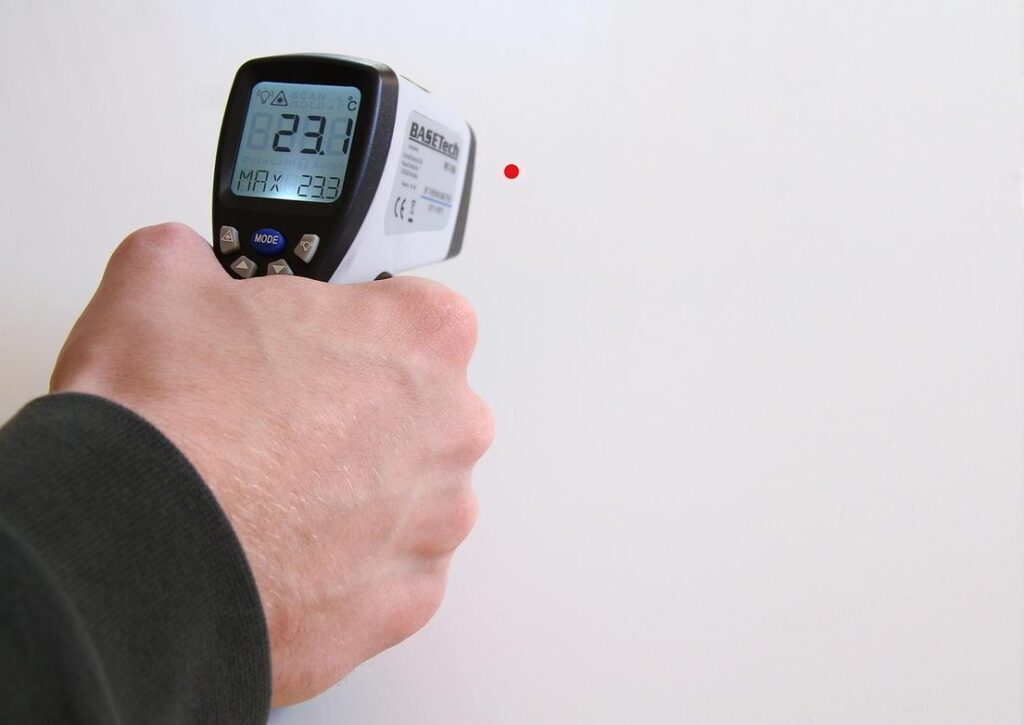
Finally, pay attention to the room itself. Batteries dislike extremes. Charging in direct sunlight or beside a humming console exhaust vent can bake internal components, permanently reducing maximum capacity (U.S. Department of Energy). Likewise, freezing temps slow chemical reactions and strain the battery. Instead, charge at comfortable room temperature—if it feels pleasant on your skin, it’s probably right for your controller, too.
Minimizing Wireless Interference
Bluetooth and 2.4GHz Wi-Fi operate on the SAME frequency band. When your router, wireless headset, and controller all compete for space, signals collide (think rush-hour traffic, but invisible). To compensate, your controller increases transmission power, which drains the battery faster.
Physical barriers matter too. Walls, metal shelves, and even your body can weaken signals. If your console sits inside a cabinet, the controller works harder to stay connected.
Practical fixes:
- Keep a CLEAR line of sight between controller and console.
- Move Wi-Fi routers at least 3–6 feet away.
- Switch your router to 5GHz if supported.
- Avoid playing far from the console when possible.
These small adjustments improve wireless controller battery care without changing your hardware.
The Importance of Firmware Updates
Firmware is the built-in software controlling how your device manages power. Sony, Microsoft, and Nintendo regularly release updates that improve ENERGY EFFICIENCY and fix connection bugs.
How to update:
- Connect your controller via USB.
- Open your console’s settings menu.
- Navigate to Accessories or Devices.
- Select “Update” if available.
Pro tip: Enable automatic updates so you never miss optimizations. Skipping updates might seem harmless, but outdated firmware can cause hidden battery drain and random disconnects (the worst mid-match scenario).
Power-Saving Habits for Everyday Gaming
I learned this the hard way. A few years ago, I’d pause a late-night FIFA session, grab dinner, and come back to a dead controller. Turns out, those “quick breaks” weren’t quick. That’s where auto-off timers come in. An auto-off timer is a built-in setting that shuts your controller down after inactivity—usually 10–15 minutes. Once I enabled mine, battery life noticeably improved over the week. According to the U.S. Department of Energy, reducing idle power use can meaningfully cut overall electricity waste. It’s a small tweak, but it adds up (kind of like skipping daily lattes).
That said, some gamers argue wireless is the whole point—no cords, no clutter. Fair. But for marathon sessions, going wired is the ultimate battery-saving move. Plugging directly into your console stops battery drain and charges while you play. During a recent RPG binge—think “just one more quest” energy—it kept me powered without interruptions. Pro tip: use the manufacturer’s cable to avoid inconsistent charging speeds.
Finally, manage a second controller. Keeping one on a charging dock ensures seamless swaps and supports better wireless controller battery care. It also helps you avoid fast-charging shortcuts that can degrade lithium-ion batteries over time (Battery University notes high voltage accelerates wear).
Game On, and On: Putting It All Together
A dead controller in the middle of a match is frustrating—but it’s completely preventable. You don’t have to settle for constant recharging or unexpected shutdowns. By combining smart software tweaks, better charging habits, and mindful play, you take full control of your gamepad’s performance. Small adjustments make a big impact when it comes to wireless controller battery care.
Start today: dim your light bar, enable auto-off, and avoid overnight overcharging. You’ll notice the difference in your very next session. Thousands of gamers are already extending their playtime with these proven tips—now it’s your turn to power up and stay in the game.
 Head of Device Integration & Technical Strategy
Evan Taylorainser leads device integration and technical strategy at HSS Gamepad. He specializes in cross-platform compatibility, controller configuration systems, and performance optimization. Evan plays a key role in testing gamepad innovations and refining HSS setup frameworks. His analytical approach ensures reliable synchronization between hardware and software. Through his expertise, the platform delivers practical, high-performance solutions for modern gamers.
Head of Device Integration & Technical Strategy
Evan Taylorainser leads device integration and technical strategy at HSS Gamepad. He specializes in cross-platform compatibility, controller configuration systems, and performance optimization. Evan plays a key role in testing gamepad innovations and refining HSS setup frameworks. His analytical approach ensures reliable synchronization between hardware and software. Through his expertise, the platform delivers practical, high-performance solutions for modern gamers.