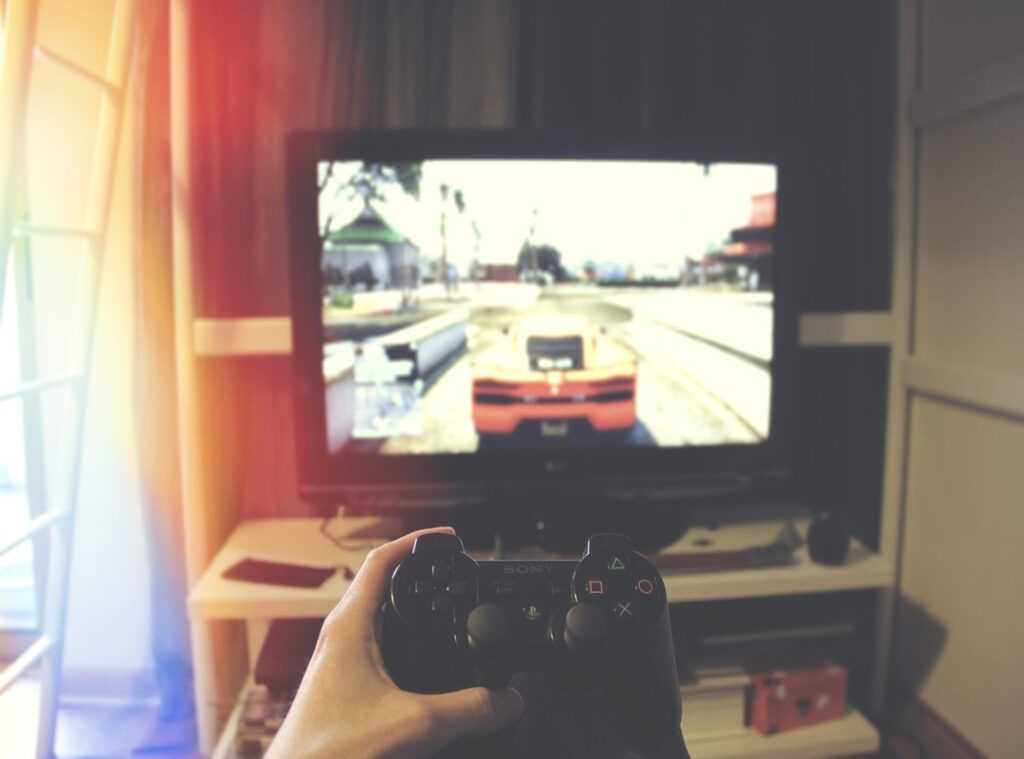
Losing a game because of clunky touchscreen controls? I get it. We’ve all been there, cursing at our screens after a loss that wasn’t our fault.
But there’s a way out. Imagine playing with precision, your every move crisp and intentional. This article is your step-by-step guide to making that a reality.
We’re diving into syncing gamepads smartphones effectively, a game-changer for those tired of inaccurate taps. I’ve tested countless controllers and devices, so you don’t have to. We’re not just connecting, we’re optimizing.
Common problems? Consider them solved. And yes, this works for both iPhone and Android.
Trust me, you’ll get into your game faster and with a serious competitive edge. Ready to ditch touchscreen frustration? Let’s transform your mobile gaming experience.
Gamepad Magic: Open up Your Phone’s Gaming Power
Let’s face it, touch controls on smartphones just don’t cut it. Sure, they’ve improved, but a gamepad? That’s a game-changer.
With a physical controller, you get unmatched precision and accuracy. Fat-fingering buttons becomes a thing of the past.
Ever tried playing a shooter with touch controls? Frustrating, right? A gamepad gives you a competitive edge, whether you’re into shooters, racing, or platformers.
It’s not just about winning; it’s about comfort. Long gaming sessions? No problem.
Gamepads are designed for ergonomic comfort, letting you play for hours without cramping up.
Syncing gamepads smartphones doesn’t just transform your phone into a casual distraction. It turns it into a serious gaming console. Curious about taking it further?
Check out this Integrating Gamepads Smart Tvs How To Guide.
Pro tip: Once you’ve experienced real tactile feedback, there’s no turning back. Who needs a console when your phone feels like one?
The Universal Method: Connecting Your Controller via Bluetooth
Bluetooth. It’s everywhere and for a good reason. When it comes to syncing gamepads with smartphones, Bluetooth is your best friend.
It’s versatile and reliable. Whether you’ve got an Xbox, PlayStation, or a third-party pad, they all love Bluetooth.
Yes, you can plug in directly, but who wants cables? Nobody I know.
For Android Devices
Let’s make this easy, shall we? First, you need to put your controller in pairing mode. On an Xbox controller, hold the pairing button until the light flashes.
On a PlayStation controller, press and hold the PS and Share buttons together.
Got it? Good.
- Put controller in pairing mode (like I just mentioned).
- Open your phone’s Bluetooth settings.
- Hit that “scan for devices” option.
4.
When your controller shows up, tap it, and confirm pairing.
Easy peasy.
For iOS (iPhone & iPad) Devices
iOS isn’t much different (shocker). Just a couple of tiny tweaks.
- First, put your controller in pairing mode (same as before).
- Open “Settings” on your iPhone or iPad.
- Tap “Bluetooth” (it’s usually near the top).
4.
Scan for devices.
- Spot your controller? Tap and confirm.
There you go. Same dance, slightly different tune.
Pro tip? Once paired, your phone should automatically reconnect the next time you turn the controller on. It makes future sessions smooth.
No more fiddling around before gaming.
Bluetooth isn’t just for audio, you know. It’s the backbone of modern gaming on the go. We all want to dive into games without setup headaches.
Bluetooth lets us do just that, ditching the wires and confusion.
Now, if only Bluetooth could make coffee too. But for now, it’s making gaming portable and hassle-free. That’s a win in my book.
So, whether you’re an Android fan or an iOS devotee, Bluetooth makes connecting your controllers a breeze. And remember, once you do it once, it’s even easier next time. No sweat.
Just game on.
Going Wired: Why USB-C and Lightning Connections Matter
Wired connections. They seem kind of retro, right? But let me tell you, they are a solid alternative.
You won’t deal with input lag or battery worries. Ever tried pulling off a headshot in Call of Duty with a dead battery? Not fun.
You get where I’m going with this, don’t you? In competitive gaming, every millisecond counts. wired connections shine. Also, in those annoying moments when your Bluetooth decides to take a day off.
If you’re like me, you don’t have time for that nonsense.
Now, let’s talk hardware. For most modern Androids, you’ll need a USB-C to USB-C cable. Simple. iPhone users?
Grab a Lightning to USB adapter (and don’t forget about USB On-The-Go compatibility for Android).
Here’s a quick guide for syncing gamepads smartphones won’t hate: First, connect the right cable or adapter to your phone. Next, plug the other end into your controller. Your phone should recognize it automatically.
Easy as pie, right?
And if you’re into more than just mobile gaming, there’s a whole world of laptop gamepad integration tips waiting to be explored. Bonus tip: wired connections aren’t just practical, they’re reliable. So go ahead, embrace the cable.
It might just save your game.
Troubleshooting 101: Solving Common Connection Headaches
Ever feel like syncing gamepads to smartphones is more like a chaotic dance than a simple setup? You’re not alone. It’s frustrating when things don’t work right away.
Let me help you solve these headaches.
‘My phone can’t find my controller’: First, check if your controller is in pairing mode. Sounds obvious, but it’s something I forget too. Also, make sure it’s charged and not still linked to another device (like that sneaky console). Simple, but it works.
‘It’s connected, but the buttons don’t work in-game’: Not every mobile game supports controllers. How annoying is that? Here’s what you do: Check the game’s settings or the App Store description. Sometimes they hide key info there.
‘There’s a noticeable delay (input lag)’: If Bluetooth is lagging, switch to a wired connection. It’s old-school but reliable. If you must stay wireless, sit closer to your device. And here’s a tip: Close those pesky background apps.
‘The controller keeps disconnecting’: Forget the device in your Bluetooth settings and re-pair it. If that doesn’t do the trick, check for firmware updates for your controller. More often than not, a simple update solves it.
Problems happen. They always do. But next time, you’ll know exactly what to do.
Got any other tech issues? You might want to keep exploring this stuff. No one should have to suffer through connection errors.
Trust me, a little knowledge goes a long way.
Game Hunt: Controller-Compatible Finds
Finding games that support your new setup? That’s the final frontier. Check the Controller Supported tags on the Apple App Store and Google Play Store.
Want a quick start? Look up lists of top controller-supported mobile games online. Syncing gamepads smartphones is pointless if you can’t find the right games.
Upgrade Your Gaming Experience Now
You’ve got the tools. The frustration of touchscreen controls is history. Syncing gamepads smartphones unlocks the precision you’ve craved. Remember how maddening it was missing that key shot or move?
Not anymore. Bluetooth and wired methods have your back, and the troubleshooting guide is your secret weapon.
What are you waiting for? Grab your favorite controller, follow the steps, and dive into the smoothest gameplay experience imaginable. It’s time to transform how you game on the go.
Stop settling for less. Call us or visit hssgamepad.net. Discover why we’re the #1 rated source for gamepad integration.
 Deyvian Droshar has opinions about hss peripheral compatibility insights. Informed ones, backed by real experience — but opinions nonetheless, and they doesn't try to disguise them as neutral observation. They thinks a lot of what gets written about HSS Peripheral Compatibility Insights, Device Integration Strategies, Tech Pulse Updates is either too cautious to be useful or too confident to be credible, and they's work tends to sit deliberately in the space between those two failure modes.
Reading Deyvian's pieces, you get the sense of someone who has thought about this stuff seriously and arrived at actual conclusions — not just collected a range of perspectives and declined to pick one. That can be uncomfortable when they lands on something you disagree with. It's also why the writing is worth engaging with. Deyvian isn't interested in telling people what they want to hear. They is interested in telling them what they actually thinks, with enough reasoning behind it that you can push back if you want to. That kind of intellectual honesty is rarer than it should be.
What Deyvian is best at is the moment when a familiar topic reveals something unexpected — when the conventional wisdom turns out to be slightly off, or when a small shift in framing changes everything. They finds those moments consistently, which is why they's work tends to generate real discussion rather than just passive agreement.
Deyvian Droshar has opinions about hss peripheral compatibility insights. Informed ones, backed by real experience — but opinions nonetheless, and they doesn't try to disguise them as neutral observation. They thinks a lot of what gets written about HSS Peripheral Compatibility Insights, Device Integration Strategies, Tech Pulse Updates is either too cautious to be useful or too confident to be credible, and they's work tends to sit deliberately in the space between those two failure modes.
Reading Deyvian's pieces, you get the sense of someone who has thought about this stuff seriously and arrived at actual conclusions — not just collected a range of perspectives and declined to pick one. That can be uncomfortable when they lands on something you disagree with. It's also why the writing is worth engaging with. Deyvian isn't interested in telling people what they want to hear. They is interested in telling them what they actually thinks, with enough reasoning behind it that you can push back if you want to. That kind of intellectual honesty is rarer than it should be.
What Deyvian is best at is the moment when a familiar topic reveals something unexpected — when the conventional wisdom turns out to be slightly off, or when a small shift in framing changes everything. They finds those moments consistently, which is why they's work tends to generate real discussion rather than just passive agreement.