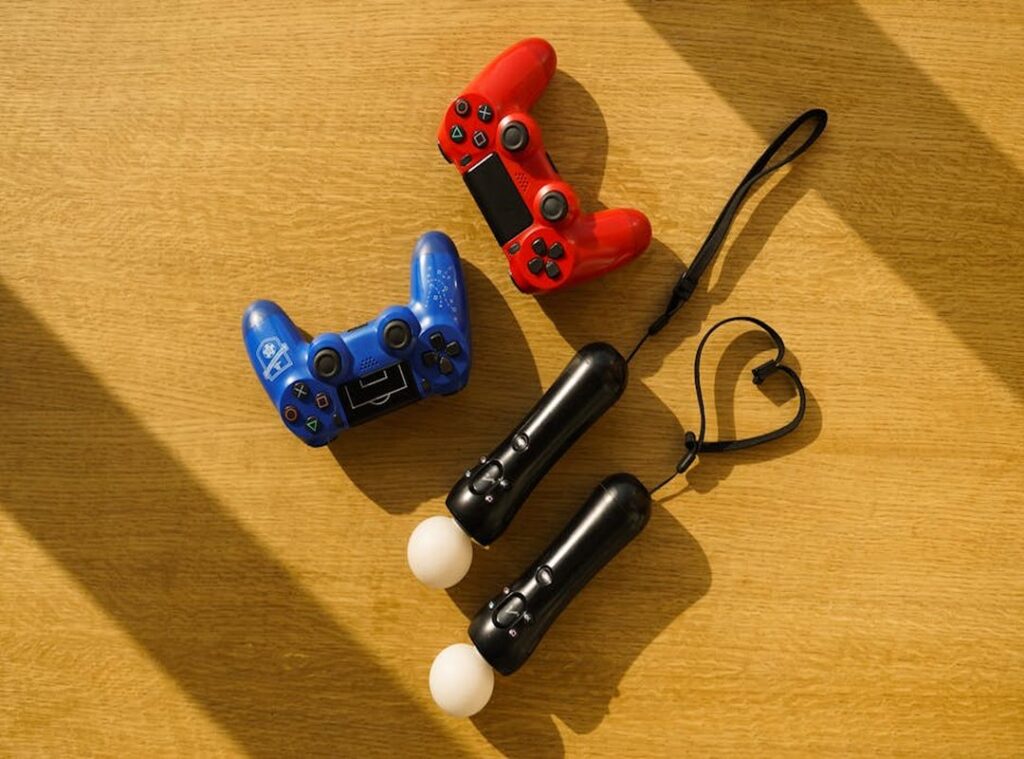
You know the feeling, right? You unbox a new smart TV, eager to dive into cloud gaming, only to hit a wall when your favorite game controller won’t connect. It’s frustrating.
Trust me, I’ve been there. This isn’t just another tech article; it’s a guide born from countless hours of wrestling with TV operating systems, controller protocols, and connection methods. I’ve cut through the jargon to give you real answers.
By the end of this, you’ll have an actionable roadmap for gamepads smart TVs integration. Get ready to finally enjoy smooth gaming on your smart TV without the headache.
The Compatibility Maze: Why Isn’t It Just Plug-and-Play?
Ever tried to hook up a gamepad to a smart TV and wondered why it’s not as easy as you’d think? Here’s the thing: a smart TV is basically a computer with a specific, often locked-down, operating system. Think of it as trying to run a Windows program on a Mac.
Sure, the hardware might be capable, but the software needs to understand the instructions.
Let’s break this down. First, the TV Operating System is the boss. Whether it’s Android/Google TV (more flexible) or Samsung’s Tizen and LG’s webOS (more proprietary), each has its quirks.
Next, there’s the Controller Connection Type. Bluetooth, USB. They sound simple, but they can be a headache if your TV isn’t playing nice.
Finally, the Controller Protocol. It’s all about how these devices ‘speak’ to each other.
This isn’t just a problem for gamepads. Consider laptop gamepad integration tips. A similar dance of compatibility.
Frankly, the whole gamepads smart TVs integration scene needs to step up. Why isn’t it plug-and-play? Because everyone’s got their own system, and they don’t always want to share.
We need to demand better integration. Until then, keep your manuals close.
The Easiest Path: Mastering Bluetooth Controller Connectivity
Bluetooth is your best friend when it comes to gamepads smart TVs integration. Why? Because it’s the most straightforward way to connect everything without a mess of wires.
If you own a smart TV and a controller, you need to master this. Let’s get into it.
First, make sure your controller is in pairing mode. This usually involves pressing a combination of buttons until something flashes. Then, head over to your TV’s settings menu.
Look for ‘Bluetooth & Devices’ and select your controller from the list. Easy, right?
Now, let’s talk specifics. Got an Xbox Wireless Controller? Only the newer models with a ‘Share’ button support Bluetooth.
To pair, hold the sync button until the Xbox button flashes. For PlayStation controllers, it’s a bit different. Hold the ‘Create/Share’ and ‘PS’ buttons simultaneously to enter pairing mode.
You see the pattern here? It’s all about knowing what buttons to press.
Third-party controllers like 8BitDo or SteelSeries? They usually have a dedicated sync button. Some even offer different modes like X-input or D-input.
Always check the manual if you’re unsure which mode to use. It’s not always intuitive. But once you’ve done it a couple of times, it becomes second nature.
For those still scratching their heads, there’s always the option to dive into online resources. Google’s got a handy guide too. Check out 6121457 for more details.
It’s a lifesaver for anyone still struggling.
Bluetooth’s simplicity makes it the primary choice for modern tech. No cables to trip over, no ports to worry about. Just smooth connectivity.
So, what are you waiting for? Get those gamepads talking to your smart TV. You’ll thank me later.
Wired & Wireless USB: When Dongles Are Your Best Friend
Let’s talk about when USB connections really shine. Picture this: a controller that’s Bluetooth-free or a TV that just doesn’t play nice with wireless signals. A USB connection is your reliable backup.
Here’s why I love wired connections. They’re simple. You plug a USB-C cable from your controller to the TV.
Done. Lower input lag is a big win here. Plus, you’re not draining batteries all the time.
Not to mention, it’s often more stable, sidestepping that pesky Bluetooth interference.
But like all things, there are drawbacks. Using a wired USB means you’ll be hogging a precious USB port. And let’s face it, cables can create quite the mess.
You also need your TV’s OS to recognize the controller. Nothing more frustrating than when it doesn’t.
Take older PC-centric gamepads. They often find new life through a wired USB. Or perhaps you’re using an official wireless adapter for those legacy controllers (sometimes, nothing else will do).
Let’s not forget those dongle-based wireless USBs. The 2.4GHz wireless dongles can be a godsend. They provide a decent range and can be less finicky than Bluetooth.
Though I admit, having yet another thing sticking out of your TV isn’t ideal.
Your setup might involve integrating gamepads with smart TVs. For that, syncing is key. Take a look at the syncing gamepads smartphones guide for more takeaways.
In the end, whether wired or dongle-based, USB connections serve a purpose. They offer a fallback when traditional wireless options fail. And let’s be real, having a Plan B never hurts.
TV Brands & Their Quirks: A Compatibility Cheat Sheet
When it comes to gamepads smart TVs integration, the TV brand and its operating system (OS) are key. Let’s break down which controllers work best with each OS.

Android TV / Google TV (Sony, TCL, Hisense): This is the most ‘PC-like’ OS you’ll find in TVs. Its broad support for XInput means Xbox controllers (Bluetooth and USB) are your best bet. PlayStation controllers work too, but Xbox is king here. It’s forgiving and rarely gives trouble (unless you’re trying something weird).
Samsung Tizen OS: Think of this as a walled garden. Newer models with Samsung Gaming Hub are optimized for Xbox controllers. They’re almost tailor-made for each other. But if you’re using another controller, proceed with caution. Some might work perfectly, others not at all. It’s a gamble, really.
Does any of this surprise you? Maybe not. But knowing which controllers work best with each system can save you a lot of frustration.
LG webOS: Another proprietary system, similar to Tizen. It supports basic Bluetooth HID, so many gamepads will connect. But don’t expect advanced features to work. No rumble, no touchpad fun. Check your TV’s support page for specifics, if you can. Not all models are created equal.
No one wants to sit down for a gaming session only to find out your controller isn’t playing nice with your TV. It’s all about compatibility. And in the end, picking the right TV and OS for your gamepad can mean the difference between smooth gaming or a night of troubleshooting.
Troubleshooting Connection Headaches: Quick Fixes
Input lag? Turn on ‘Game Mode’ on your TV. It’s like magic. Or sit closer to the TV for a stronger Bluetooth signal. Wired connections can also save the day (no more lag).
Buttons not working? The app might be the issue. Some apps don’t support gamepads. Try it in a known compatible app like the TV’s web browser.
Random disconnects? First, check your controller’s battery. Then, update your TV’s firmware. Remove and re-pair the controller from the TV’s Bluetooth menu. Gamepads smart TVs integration can be tricky, but these fixes work wonders.
Game On: No More Compatibility Confusion
Struggling with gamepads smart TVs integration? It’s simpler than you think. Match your controller’s connection to your TV’s system.
Done. Now, grab that controller. Follow the steps.
Get into the game. Don’t wait. Dive into gaming on your big screen and leave the frustration behind.
Ready? Let’s play.
 Deyvian Droshar has opinions about hss peripheral compatibility insights. Informed ones, backed by real experience — but opinions nonetheless, and they doesn't try to disguise them as neutral observation. They thinks a lot of what gets written about HSS Peripheral Compatibility Insights, Device Integration Strategies, Tech Pulse Updates is either too cautious to be useful or too confident to be credible, and they's work tends to sit deliberately in the space between those two failure modes.
Reading Deyvian's pieces, you get the sense of someone who has thought about this stuff seriously and arrived at actual conclusions — not just collected a range of perspectives and declined to pick one. That can be uncomfortable when they lands on something you disagree with. It's also why the writing is worth engaging with. Deyvian isn't interested in telling people what they want to hear. They is interested in telling them what they actually thinks, with enough reasoning behind it that you can push back if you want to. That kind of intellectual honesty is rarer than it should be.
What Deyvian is best at is the moment when a familiar topic reveals something unexpected — when the conventional wisdom turns out to be slightly off, or when a small shift in framing changes everything. They finds those moments consistently, which is why they's work tends to generate real discussion rather than just passive agreement.
Deyvian Droshar has opinions about hss peripheral compatibility insights. Informed ones, backed by real experience — but opinions nonetheless, and they doesn't try to disguise them as neutral observation. They thinks a lot of what gets written about HSS Peripheral Compatibility Insights, Device Integration Strategies, Tech Pulse Updates is either too cautious to be useful or too confident to be credible, and they's work tends to sit deliberately in the space between those two failure modes.
Reading Deyvian's pieces, you get the sense of someone who has thought about this stuff seriously and arrived at actual conclusions — not just collected a range of perspectives and declined to pick one. That can be uncomfortable when they lands on something you disagree with. It's also why the writing is worth engaging with. Deyvian isn't interested in telling people what they want to hear. They is interested in telling them what they actually thinks, with enough reasoning behind it that you can push back if you want to. That kind of intellectual honesty is rarer than it should be.
What Deyvian is best at is the moment when a familiar topic reveals something unexpected — when the conventional wisdom turns out to be slightly off, or when a small shift in framing changes everything. They finds those moments consistently, which is why they's work tends to generate real discussion rather than just passive agreement.